
Test
QA tasks
A QA task tests one feature from its requirements: a plan you approve, testing as it happens, and results tracing every requirement to evidence and regression tests.
Starting a QA task
On a project's QA tasks tab, choose New QA task. Describe the feature, paste a story or acceptance criteria, or attach a document (text, Markdown, CSV, JSON, Gherkin, PDF or Word). Qadet looks at the app, asks only what blocks the tests, and proposes a plan.
The QA tasks list shows the newest first: the task that last ran, finished, started or was made is on top. Use the status filters above the list to see the ones that need attention. Under each title, Qadet shows the top reason something is blocked or failed, and each result chip (such as 1 defect or 4 blocked) opens the QA task filtered straight to those scenarios.
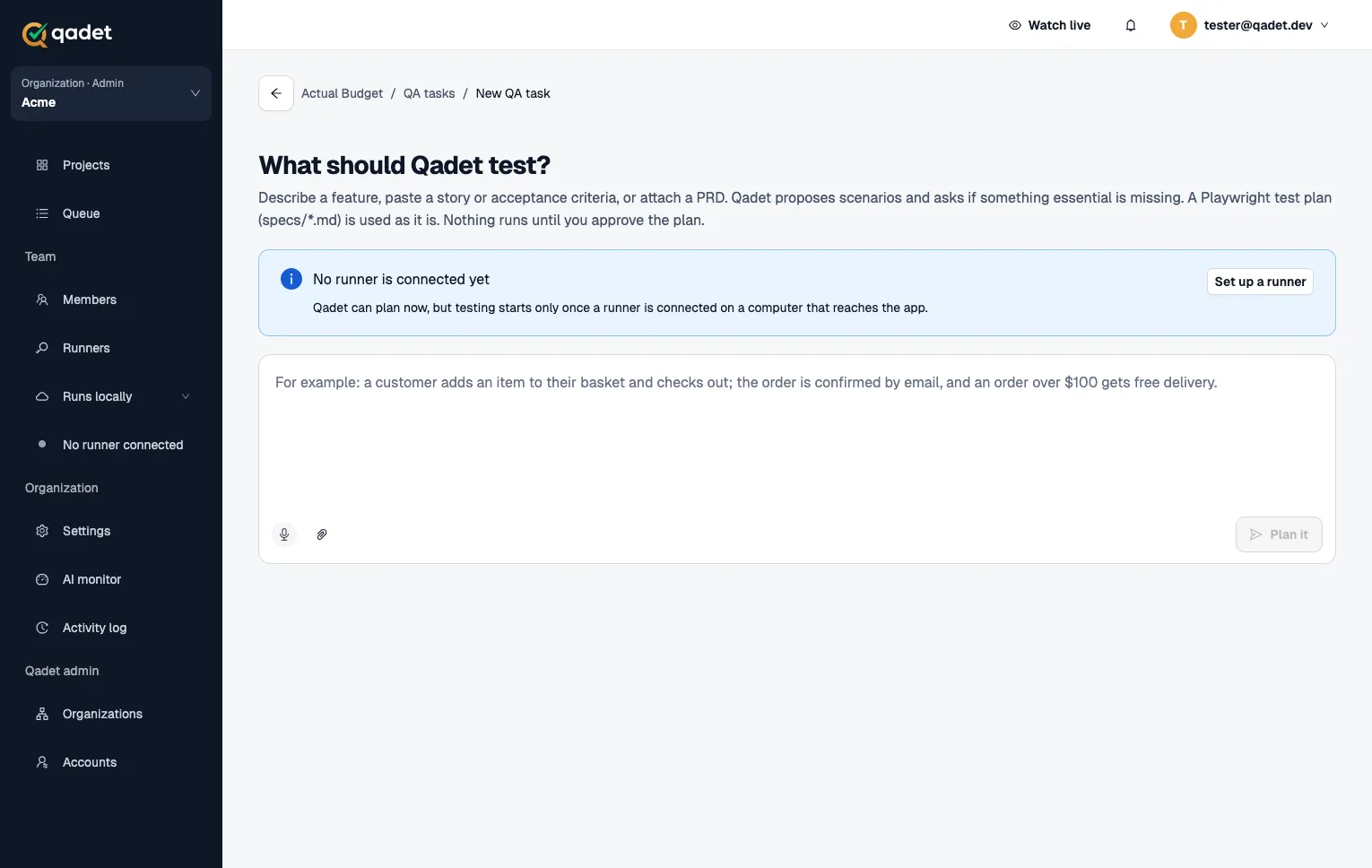
A Playwright test plan, such as a specs/*.md file Playwright's planner wrote or a Qadet export holds, is used as it is: attach it and each #### scenario, with its steps and expected results, becomes a scenario of the plan, ready to approve, with no AI spent planning.
Linking the story in your tracker
Under the title, Link adds the story or ticket the QA task tests, such as PROJ-123 or a link to it in Jira, Azure DevOps or Xray. Every test kept from the QA task is linked to it too, and so are tests kept earlier.
One page, from plan to results
A QA task stays on one page: the conversation with Qadet beside a living Test plan. The same list holds the plan before testing, each test's status while it runs, and what it found afterwards. On a phone, switch between them with Qadet and Test plan. When testing ends, Open report opens the full report. On a narrow screen (860 pixels or less), the tab says how many tests the plan has, such as Test plan · 8.
Qadet looks first, asks only what blocks it
Before it plans, Qadet takes a short look at the app for your requirement when your runner is connected: it signs in, opens the screens the requirement names, and notes what data exists, without changing anything. That takes about a minute and uses at most $0.40 of AI. With no runner connected, Qadet plans without a look. If the look takes over four minutes, Qadet plans without waiting for it.
When the requirement spans several areas of the app's menu, such as Budget and Accounts, the look splits up: after signing in, Qadet opens up to three more tabs in the same browser, signed in as the first, and looks at each area at the same time, then puts together what it found. The plan's page shows each area on its own line while it looks, such as Looking at Budget…, with its steps. On a smaller computer (under 12 GB of memory or fewer than 6 cores) the runner opens no extra tabs and looks one area at a time, so the look never slows the laptop down. The whole look still uses at most $0.40 of AI. An app with one area, or a runner older than 0.7.36, looks with one tab, as before. The tabs only look: nothing they do becomes a saved test.
If something would block the tests and Qadet can't decide it alone, such as a test account the project lacks or data the tests can't create, it asks at most two questions in the chat, each with answers to tap (the recommended one first) or Something else… for your own words. Use recommended answers them all at once. Everything else it decides itself and lists under Qadet assumed at approval, each with Change to correct it.
Your answers are kept as the project's plan preferences, so later QA tasks don't ask again. Turn this off with Remember answers to QA task questions in the project's settings, and see or forget remembered answers under Setup, Knowledge.
Planning
- Qadet: The chat that set the task up, any attached document, and what the planner did step by step. Qadet asks only what it can't find, with one-tap answers. While planning or approving, ask for a change and Qadet changes only that: your other tests stay as they are. After approval, you can add follow-up instructions for remaining scenarios.
- Test plan: Tests appear as Qadet plans them, grouped as Data setup, Critical, Important and Extra. Each shows why it is there: the requirement it proves (R1, R2 and so on), Inferred when your request implies it, Knowledge, or Seen on screen. Show it By requirement, each requirement with the tests that prove it and where it stands, or By test. Before testing, each test shows a grey dot; once tested, the dot takes its result's colour. A test that runs after another shows After TC-…. The plan also shows how many requirements are covered. By requirement shows No test checks this yet under a requirement with no test, with Add test to ask for one; By test shows one line, such as 2 requirements have no test · Show by requirement. In Qadet assumed, Change edits an assumption where it is shown, and Update plan has Qadet update only the tests it affects. The chips under the chat box, Only critical, More edge cases and Test on a phone, ask for those changes in one tap.
- Choosing what runs: Untick a test to skip it this round: it stays in the plan as Not selected, and you can pick it and rerun it later. Select all and Unselect all tick or untick every test, and Only critical keeps the main journey, data setup and critical tests. To drop a test from the plan, open it and choose Leave out, optionally saying why. Tests a change adds are highlighted, with Untick them. When an earlier round has a report, Last report opens it. Choose Edit requirements to reword or remove a requirement, and Approve and start testing to begin. The line beside it says how many requirements the ticked tests cover. Nothing runs before that. While Qadet asks you a question about a plan it already made, the plan stays in view and you can tick tests, but starting waits until you answer.
Each scenario has a Goal: what the browser must show for it to pass. The test agent passes it only when its checks prove all of the Goal, and checks nothing else. Once a project has runs, scenarios use the app's real names from saved knowledge.
Sometimes the app follows a business rule in the project's knowledge, and the Goal expects something else. Then the scenario ends Blocked, not Failed: the test is wrong, not the app. Its reason starts "The Goal goes against the rule". Correct the Goal, or the rule if it is wrong. See Statuses and causes.
Scenarios are independent. When several need the same data, the plan adds a setup scenario that only makes that data and remembers its values. A scenario takes values only from such a setup, one hop away. It never takes them from a scenario that checks a requirement, and never through a chain of setups. The parts of a split scenario are the one exception, since they are one journey cut up. A scenario can also run after an earlier one for its side effect, such as an email sent or a setting changed, with no value passed. On an opened test in the plan or a test's Connected tests card, choose Edit dependencies to swap a dependency for another scenario, remove it so the scenario makes its own data, add one, or set side-effect ordering. If an earlier scenario doesn't pass, the ones depending on it are blocked, not failed; when a repair on that earlier scenario is accepted, Qadet automatically reruns the scenarios it blocked. A later scenario starts as soon as the one it needs reaches its verdict with what it remembered, so a slow local app doesn't make it wait twice. If the account allows one session at a time, it waits for the run to end.
A scenario that passes is done at its verdict. Qadet then checks its saved steps repeat by replaying them once, as a run of its own, after the project's other runs, so the next scenario never waits for it. If that replay fails, it shows on the test like any failed replay, with a repair to look at.
Testing
After Approve and start testing you stay on the same page. The plan shows a progress bar split into passed (green), failed (red), running (blue) and not run (grey), and Qadet says in the conversation how far it got. You can leave the page: Qadet notifies you.
When a feature is one long journey, Qadet marks it Smoke and runs it first. If it breaks, the tests that depend on it working are Held rather than run against a broken journey. Retry it and they carry on when it passes, or choose Run them to run them anyway.
- Each test in the plan: Shows its name, goal, status and why it is there. While testing runs, tell Qadet what it missed in the box under the conversation: it changes this same QA task, and the tests not started yet follow it. Left-out tests are folded at the bottom, with Include again, even for a test that never ran. Once the task has stopped, the line under the plan reads like 5 passed · 1 bug found · 1 needs your call. Rerun what didn't pass runs again every test with a bug, a call for you or one that couldn't be tested, and Open report opens the report. Tick tests and choose Rerun picked to run just those again together, or Clear to untick them.
- An opened test: Opens in a drawer over the test plan, as wide as the plan, so the conversation stays in view. Previous and Next move through the tests in the order the plan shows them. Its top line shows its status (Not run before it has a result), why it is in the plan, its group, such as Smoke or Critical, and Main journey for the main journey. It shows its goal, the last result with its cause if it failed (while a new plan waits, the result of the round before, such as Last result · round 1), where it starts from, why it is in the plan, its dependencies and its steps. Once it is saved as a test, Edit test opens that test to change its steps or settings. Change with Qadet, on the test or on one step, keeps its test, its history and the tests connected to it, and your words are added to the scenario so later runs follow them. On a planned step with no saved test yet, it opens under the step: say what should happen instead and choose Redo from here. Dependencies shows what the test depends on, what uses it and what it remembers, with Edit dependencies, or Add dependency when it has none. See Improving a test with AI.
Each test's result tag reads Passed, Bug found, Needs your call or Couldn't test. An opened test that didn't pass also shows its cause, such as App bug or Missing data. Every status and cause is explained in Statuses and causes.
The report
When testing finishes, Open report at the bottom of the plan combines the report and regression suites:
- Verdict: The overall result (e.g. "4 of 5 requirements verified") and Qadet's summary, then four counts: Passed, Bugs found, Need your call and Couldn't test.
- Each requirement and what proved it: Traces every requirement to the run and scenario that verified it, with a tag: Verified, Bug found, Needs your call, Couldn't test, Partly verified, Left out, Not tested or No test yet. Underneath are next steps. Ask Qadet to rewrite the report, at the top of the card, asks before it uses AI.
- Keep these as regression tests: Shows passed scenarios with saved steps that you can add to the project's Regression suite. Tick Also put them in a suite of their own for a suite named after the QA task. Select all ticks every test not added yet, and the row says how many are selected. Tests already added show In Regression. Passed scenarios with no saved steps can't run as regression tests yet; the report says so and offers Rerun to save their steps.
- Earlier rounds: The last card of the report lists each earlier round of this task, read-only.
Kept tests go in the group QA tasks › <the task's title>. A test that starts from a setup scenario brings that setup with it, since it can't run alone. Such tests join a suite that runs in order, so the setup runs first and passes its values on.
Correcting one scenario
To change one test without planning again, open it in the test plan and choose Change with Qadet. Describe what should change, such as remove the delete flow from this scenario, and choose Ask Qadet. Qadet rewrites only that scenario; the rest of the plan stays intact.
Running it again
- Replay all, in the ⋯ menu, reruns the task's saved tests with no AI, in the same QA task, as a new round. The report is written again when they finish.
- Rerun failed, Rerun inconclusive and Rerun all unpassed, also in the ⋯ menu, rerun only those scenarios in this QA task.
- Plan again plans the same QA task again, as a new round, from the request and the requirements as they stand now. Say what should change if you like, such as a new rule or edge cases to add. The old plan's scenarios leave the plan, marked Replaced when planned again, and the QA lead makes a fresh plan for you to approve.
- Neither makes a new QA task. Each earlier round stays, read-only, under Earlier rounds, the last card of the report (under the plan while a task has no report): its scenarios, results, runs, report summary and AI cost, so you can see a fix worked.
- Ask Qadet to rewrite the report asks first, so a stray click doesn't start AI work.
- Export, shown once the task has finished: Excel workbook downloads a full report spreadsheet, and PDF report opens a report to save as PDF.
- Export, Demo GIF downloads an animated walk-through of what the task proved, for UAT review. It plays the passed scenarios as a story, with each step's words as a caption, shown on the screen where it happens with what it acts on ringed, then what it led to: setup first, then creating, viewing, changing and removing, with error cases last, and each scenario after the ones it depends on. It plays as one smooth flow: setup and test data that later scenarios create again show once, even when the steps were worded differently, and the same steps repeated in a row, such as adding five records, show their first and last round. No AI is used. It uses the screenshots runs already saved, so nothing runs again, and your browser makes the GIF.
Add a requirement later
One feature ticket stays one QA task. When the ticket grows after testing has finished, type the new requirement in the box beside the plan, such as deleting a project is recorded in the Activity log, and choose Add and plan. Qadet adds it as the next requirement (R5 after R1 to R4) and plans scenarios only for it, reusing an existing test where one already proves it. Scenarios that already ran keep their results, and left-out ones stay left out. Approve the new scenarios as before: only they run, and the report then covers every requirement.
Runaway guard: a QA task pauses if it uses an unusually large amount of AI ($50), starts an unusually large number of runs, or runs unusually long. Runs and time count per round; each new round from Replay all or Plan again starts with $50 of AI room. Time counts only while its tests are running, not while they wait for a runner. A paused task shows Paused: ran long: check it isn't stuck, then choose Continue, which raises the limits and runs the scenarios it stopped. The organization's monthly AI limit still applies.
A Run with AI also stops on its own when it goes round in a loop, doing the same thing five times, or when twenty tries in a row save no step. Its steps are kept, and the next run goes on from them.