Test
Tests
Tests are saved, verified steps. Run them with AI to work them out or repair them, or replay them with no AI at all.
The summary line
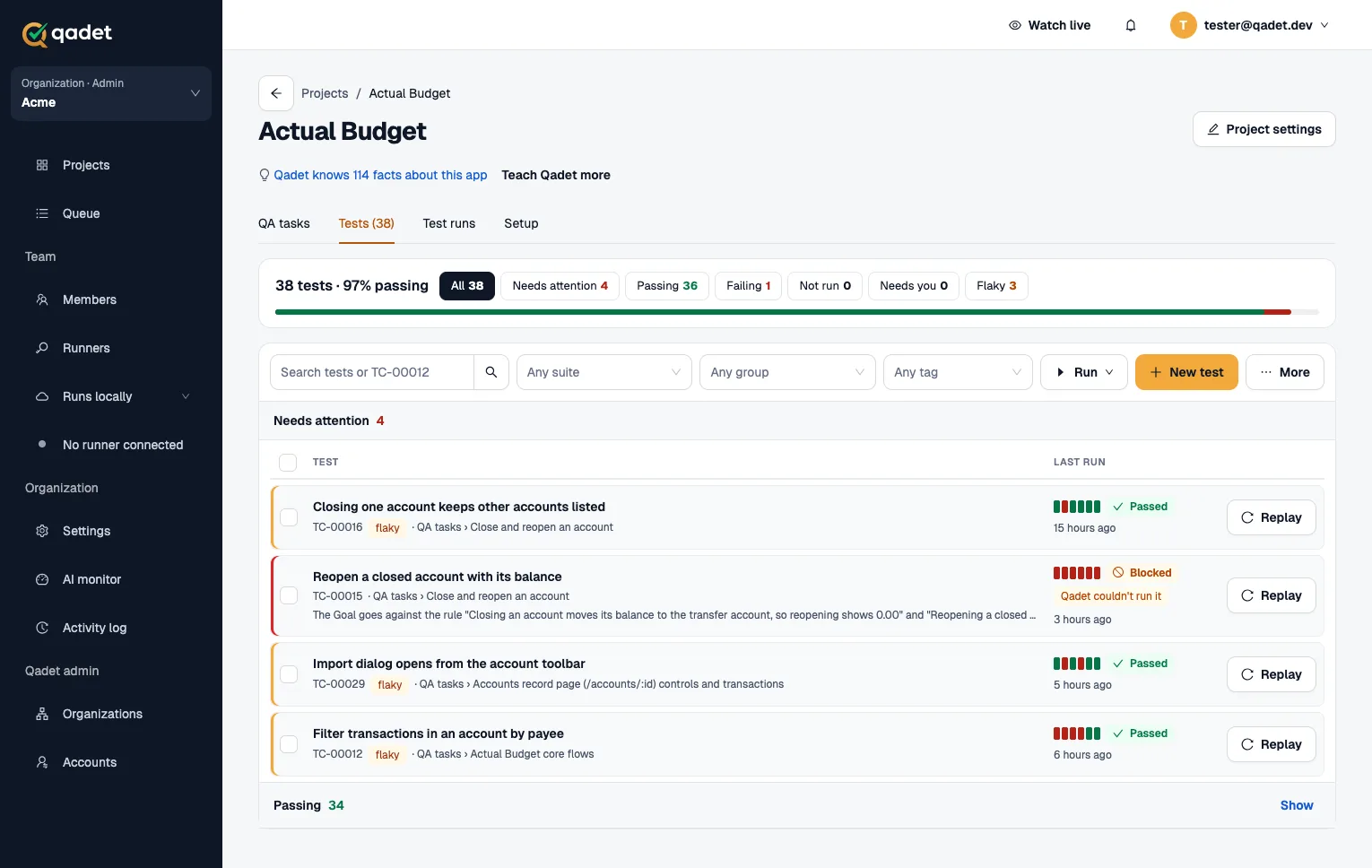
One line: how many tests and how many pass, with All, Passing, Failing and Not run to filter the list, Needs you and Flaky as counts, and a bar of passed and failed.
Needs attention lists every test someone has to look at: failing, flaky, or waiting for you to decide a repair. They are grouped by why, decisions first. A tag on each failed test says what it looks like: App bug, Qadet couldn't run it (the test couldn't carry itself out) or App or browser unreachable. See Statuses and causes. Under each failed test's name, one line says why its latest run didn't pass, such as The cart total shows $4.00 instead of $6.50, with how bad an app bug is (high, medium or low, from its QA task scenario's priority); hover it for the whole sentence. Tick tests waiting for you and choose Accept N repairs (such as Accept 3 repairs) to accept them all, as if you accepted each on its run.
Each test shows its last six runs as small squares, oldest first, green for passed and red for failed, so a test that flips stands out. Click a test's row, its name included, to see it in a panel that slides over the right of the list (Ctrl or ⌘ click on the name opens the whole test in a new tab instead): what it checks, how it last ran and why, the suites it is in, its saved steps, and Open test at its top for the whole test, Change with Qadet and All runs. Click another row to switch to it. On a phone it opens full-screen, and each test shows its last result under its name, with Replay as an icon. Each row’s left edge is red when the test is failing, amber when it is flaky and green when it passes. Above the list, Any suite, Any group and Any tag narrow it, beside the search; type in any of them to find a suite, group or tag by name. With no filter on, the list starts with Needs attention (tests failing, flaky, blocked or waiting on you) and folds the passing tests under Passing; choose Show to open them.
Creating a test
Choose New test and say in plain words what Qadet should test, the start page, device (Desktop, Mobile or Tablet), group and suites. The first run works it out with AI and saves the steps that passed.
Importing tests from a CSV
More → Import CSV turns a spreadsheet of test cases into tests, one per row. The first row names the columns:
| Column | What goes in it |
|---|---|
name | Required. The test's name. |
prompt | Required. What Qadet should test, in plain words. |
group | Where it lives. Nest groups with >, such as Customer > Checkout; missing groups are made. |
type | positive or negative. |
tags | Separated by commas. |
ticket | Its story or test case in your tracker, such as PROJ-123 or a link; several separated by commas. |
start_url | The page it starts on. Leave it out for the project's address. |
device | desktop, mobile or tablet. Leave it out for the project's default. |
name,prompt,group,type,tags
Checkout with a saved card,"Sign in, add a pen to the basket and pay with the saved card; the order is confirmed",Customer > Checkout,positive,"smoke,payments"
Empty basket can't check out,"Open the basket with nothing in it; Checkout is not offered",Customer > Checkout,negative,smoke
Column names ignore case and spaces, so Start URL works too. Rows that can't be saved are listed by line number, and the rest are imported. A large file is read in the background, and the dialog shows the result when it's done. Imported tests have no steps yet: the first Run with AI works each one out. If the project requires approval, they wait under drafts to review.
Suites, groups and tags
- Groups are where a test lives, like folders: by feature or role, such as Checkout or Admin. Choose More → New group; with a group chosen in Any group, the new one goes inside it. With a group chosen, rename or delete it under More.
- Suites are sets of tests you run together, such as Smoke or Regression. A test can be in several. Choose More → New suite, then add tests to it from the list.
- Tags are free labels for finding tests.
To reorganize, tick tests in the list and choose Move to group, add them to a suite with Add to suite, or Remove from suite. A test is in one group but can be in many suites: adding it to a suite keeps it in its other suites, so to move it, add it to the new suite and then remove it from the old one. Moving a test never changes its steps or its history.
Tick tests to act on them: the bar above the list turns into what you can do with them (run, add to or remove from a suite, move to a group), and Clear puts it back. With a suite or group chosen, its rarer actions (order, rename, remove) are under More. Across Qadet, the orange button is the main thing to do on a page, and actions you rarely need or that remove something sit behind ⋯.
Test case IDs
A test page's Linked holds its IDs in your tracker: the story it came from, and its own test case, such as an Azure DevOps or Xray test case. A Playwright export puts them in brackets at the start of the test's title, [PROJ-T45] Sign in works, and the first one at the start of its file name, so the reporters those tools use match results to test cases. Tick several tests in the list and use Link to ticket to link them at once, or choose Remove the link there to take one off them all. Importing a CSV with a ticket column links new tests; a row with a test number, such as TC-00012, and a ticket links that existing test instead, so a tracker's export of test case IDs maps onto Qadet's tests.
Tests that depend on each other
Most tests are better independent. A QA task's plan makes only one kind of dependency: a setup scenario that makes data, and the scenarios that use it. It never chains them. When a journey of your own has to be split, such as one test creating a customer and the next placing their order:
- Choose the suite, then More → Order, and switch In order on. Drag the tests into sequence.
- Tick Setup on a test the rest can't run without. If it fails, the tests after it are blocked rather than run.
- Pass a value on in the tests' descriptions: an earlier test says "remember the order number as ORDER_NUMBER", and a later one uses
{{ORDER_NUMBER}}. - Replay a later test on its own and the tests before it in the suite run first, in one test run, so the values it needs exist.
- While a test waits its turn, its run page names the test it waits for, links to that run, and says how many go before it.
Simpler: write one long test, run it until it passes, then choose Split. Qadet makes the ordered suite and passes the values for you. A test splits into 2 to 10 parts; the original is paused, not deleted. An ordered suite holds at most 200 tests.
Values the app generates, such as an ID it shows for a new record, are remembered rather than saved as they were, so each replay uses the record it made. When a step clicks something whose name holds a remembered value, such as a row showing the candidate's email, the step is saved with {{CANDIDATE_EMAIL}} in it. Each replay then picks the record its own setup made, never an older one left in the app by an earlier run.
A rerun or retry of a QA task scenario reuses the data the scenarios before it made, such as the participant they added. They run again only when a value the scenario needs is missing.
Steps taken only when the page shows something
Some apps keep a user's progress between runs, such as an assessment that shows Completed after the last run took it. A tester doesn't make a new user for that: they reset it, and only when it needs it. Qadet does the same.
- While exploring, the AI saves an Only if shown step, such as "When Completed shows in the Guide row: reset the Guide assessment", with the steps that reset it inside.
- On each replay the step looks for its text. Not shown, its steps are skipped. Shown, they run.
- If the text shows on a replay and no steps were saved for it yet, because it wasn't shown while exploring, Qadet explores the test once more to record them.
- Exported to Playwright, the step is a plain
if, so the suite runs the same way without Qadet or AI.
Cleaning up test data
Tests that create things, such as a user, an order or a project, can remove them afterwards, so the app doesn't fill up with test records. Turn it on in the project's settings with How to remove test data: say in plain words how to delete something, such as "open the project's settings, archive it, then delete it". Leave it empty to keep test data.
- Only what the test made. While working a test out, Qadet notes each record the app confirms it created. After the verdict it removes those, following your words, and nothing else, even if other records look like test data.
- Saved as cleanup steps. The removal is saved with the test, marked clean up, and runs on every replay after the test's own steps, also when the test failed. Cleanup never changes the verdict.
- An early failure says so. When a test fails before it made anything, its first cleanup step finds nothing to remove; the run then says "Cleanup didn't start" rather than that data was left behind.
- Data later tests need is kept until the end. A setup test (in an ordered suite, a split test, or a QA task's setup scenario), and any test in an ordered run that remembers values for the tests after it, makes data those tests use, so it doesn't clean up straight away. Once the test run ends, Qadet runs each such test's cleanup in a run of its own, the last made first: it signs in as the test did and removes what the test made, by the values it remembered. That run shows in the test's runs but doesn't change its result.
- What's left is reported. If cleanup fails partway, the run shows a finding, "Test data may be left behind", naming the step, so someone can remove it.
Use records named with {{unique}}, so each run creates and removes its own and never touches another run's.
Sharing a sign-in
When tests in one run sign in as the same account, the replay signs in once and the others start signed in. Their sign-in steps show as skipped. This is on by default: the test's Sign-in switch reads Shares sign-in. Turn it off for a test that must always sign in itself, such as a test of the sign-in page.
Running tests
| Action | What happens | AI cost |
|---|---|---|
| Replay | Plays the saved steps exactly. | None |
| Run with AI | Works the test out from its description, or repairs steps that no longer match. | Model calls |
| Run (on the list) | Run all, run failed, or run a suite, as one test run. | None for replays |
A test on a slow page can wait longer without changing the project: in Edit details, turn on Slow pages. The test then waits twice as long for pages (90 seconds) and elements (40 seconds), and its summary says it waits longer. This needs runner 0.7.20 or later.
A test that starts from what other tests make, such as a participant another test added, shows them under Connected tests: Starts from lists the tests that run first and the values each passes on, such as {{PARTICIPANT_EMAIL}}, and Used by lists the tests that start from this one. Each shows its last result, so a failure or a change shows which other tests it reaches.
Some work depends on what is there, such as removing every leftover test record. Qadet saves it as steps that repeat while shown: the steps for one record, repeated while the page still shows one, up to 50 times. The steps list shows them as While "qadet.participant+" shows: 3 steps, repeated, and the Playwright export writes the same loop, so the test runs without AI like any other. This needs runner 0.7.39 or later.
Each run button lets you choose the device and the environment for that run. A test saved on a desktop also replays on a phone or tablet: when a link it clicks is hidden behind the site's menu button on a narrow screen, Qadet opens the menu first. Bulk actions on ticked tests apply to at most 100 at once; use a suite, group or tag to act on more. A note added when queuing a test is at most 500 characters.
Forms inside iframes
Parts of a page that an app embeds from elsewhere, such as a payment provider's card form, a rich-text editor or a help widget, sit in an iframe. Qadet reads, clicks and types in them like the rest of the page, and its text checks look inside them too. A saved step names the frame it reaches into, such as locator('iframe[title="Payment"]').contentFrame().getByRole('textbox', { name: 'Card number' }), so replays find it again. Masked areas and password fields are hidden inside frames as well.
Checking what the app sent
A save can look done on screen while the server refused it. A request check proves it wasn't: after an action, it checks that the app sent a request, such as POST /api/orders, and the server accepted it (any success, or an exact status such as 201). An id in the address is saved as *, so /api/orders/*/items matches the next run's new order too. The AI adds one when the screen alone isn't proof, and you can add one under Edit steps with Check the app sent a request. Only requests made since the last action count.
Short tests
A test keeps only the steps that lead to its checks. Steps after the last check prove nothing, so they aren't saved, apart from cleanup; and a test is never saved from a run that checked nothing. A test that has steps but no check says so on its page, since it can't fail. When Qadet works a test out, it also leaves out detours, such as a menu opened only to look or a wrong turn it undid: the test is saved without them only if a replay of the shorter steps still passes, and keeps every step otherwise. When several scenarios of a QA task need the same data, such as an employee with leave, the plan builds it once in a setup scenario and the others start from it, rather than each repeating the same steps.
Editing steps by hand
On a test's Test tab, its saved steps are listed under Steps, each in plain words: what it does (Click, Type, Check order) and its value. Checks are marked green. Choose a step to see, beside the list, what it saw in the last passing run. What it checks shows the first 4 planned steps, with Show all for a long plan. Show code adds each step's Playwright line, for developers; it stays as you set it. Change with Qadet, Edit and More show on a step when you point at it. With QA or Admin access you can change them without AI:
- Edit a step to change what it does, the element it uses (a Playwright selector) or the value it types.
- Add step at the end, then Move up or Move down to put it in place.
- Delete step from its More menu.
Steps you can add include clicking, typing, typing a saved value (by its name, never the value), choosing an option, pressing a key, going to a page, uploading a file, remembering a value for later tests, opening a link from an email, and checks: text shown or not shown, the page address, an element shown, a downloaded file, and a field the browser refuses. Every change is saved as it's made, and the next Replay uses it.
Spoken answers
A test of an app that listens, such as an AI interview, a voice assistant or speech-to-text, can say scripted answers. Under the steps, choose Add spoken answers and type one answer per recording, in order, such as what a candidate says to each interview question. Leave one blank for a recording to skip, such as a system check. When you choose Save and make speech, Qadet speaks each answer once, with the organization's OpenAI or OpenRouter key, and keeps it as a project file. Each time the app starts recording, the test's made-up microphone says the next answer; the camera shows a moving picture, so nobody is filmed and nothing is heard aloud. Runs and the exported Playwright test play the same audio, with no AI, and nothing extra is needed on a tester's computer. Check what the app does with the answers by stable words, such as a follow-up question appearing or a phrase in the transcript, since an AI's wording changes from run to run.
You don't have to write them. When a test reaches a question the app wants spoken and has no answer for it, Qadet's AI writes one: first person, on the question, 30 to 90 words. An answer holding personal details, anything about religion, caste, gender, age, family or health, an insult, or words aimed at an AI scorer is refused and written again. The runner speaks it with the computer's own voice, so no speech key is needed. When the run passes, the answers are saved under Spoken answers beside their questions, and every later run and the exported Playwright test say the same words. They never change unless you edit them.
To write many answers at once, choose Paste a script: each paragraph becomes an answer, or each line when there are no blank lines. To play a real recording instead of speech, upload the audio under the project's files, then pick it for that answer under Or play a recording.
Improving a test with AI
Change with Qadet is the one way to change a test with AI, wherever you are: on a saved step, on the failed step of a run's page, on a QA task's step, or for the whole test under its steps. It opens right there and every change goes the same way: you ask what should change, Qadet proposes, you approve, and it runs. Nothing changes until you choose Approve and run; Not this puts your words back to say it differently.
Change a test from one step on
Opened on a step, it changes the test from that step, such as open the row in the Projects table: the steps before it stay as they are and replay first, without the AI, so they cost nothing. From that step the AI does what you said, and when the run passes, the kept steps and its new ones become the test's steps. If the app changed and an earlier step no longer replays, the AI goes on from where it stopped. A QA task's test is changed the same way, in its own scenario, which keeps its history. Its QA task must have stopped first.
Change the whole test
For the whole test, say what to change, such as "also check the confirmation email", or why it failed when it shouldn't have. Qadet reads the test and how it last ran, and may ask what it needs. It then proposes a new version, or a split into tests that run in order. Nothing changes until you choose Approve and run, or Approve, split and run for a split. Qadet then runs the new version with AI and saves the steps that pass. Reply to keep refining it first.
A test's page
Every test can have a Goal: what it must show to pass, such as the order shows as Paid. Set it in Edit details; it shows first on the test's page, and the AI checks it and nothing it doesn't name. Tests a QA task wrote get their scenario's goal.
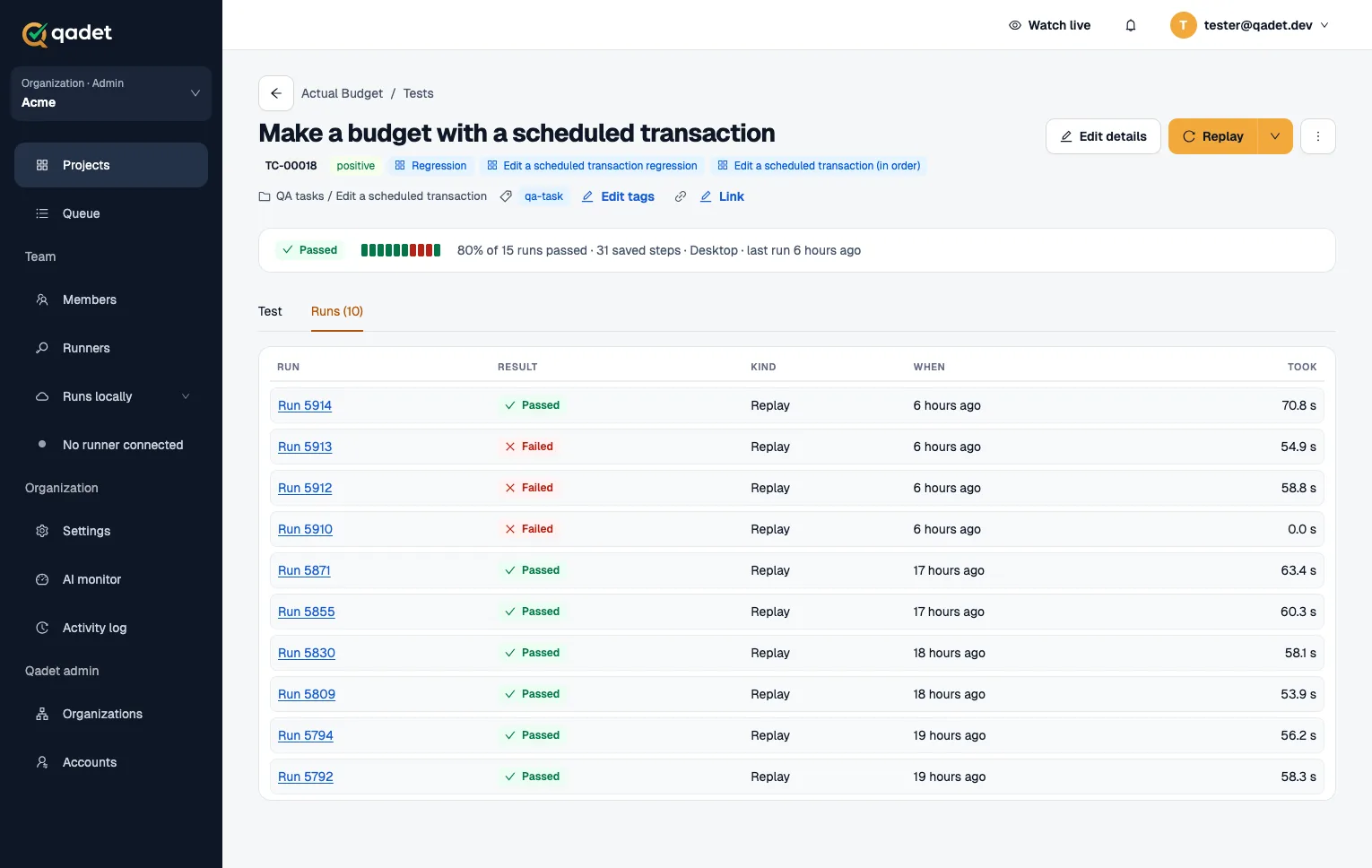
Under the title, one row shows its number, type and suites (on a phone, the first by name and the rest as a count you can hover). A quiet line below shows its group, tags and tracker links; the pencil beside each edits it in place. A line below shows the last result, a bar for each recent run, reliability, saved steps and device. The Test tab shows what it checks and its steps, with Change with Qadet under the step you point at and under the steps, and its settings beside them: start page, sign-in, quarantine and slowest step. On a phone the settings move below. The Runs tab lists every run.
A test a QA task wrote reads like its scenario: the Goal first, the requirements it proves (R1, R2…), who it acts as, and its steps, numbered. A test you wrote yourself shows as you wrote it.
Its header keeps Edit details and Replay in view; the ⋯ menu holds Pause, which leaves the test out of every run until you resume it, and Delete test, which removes the test and all its runs. A paused test shows Resume instead.