
Getting started
Quickstart
From a new workspace to your first finished QA task and its first regression tests.
Before you start: you need an invitation to a Qadet workspace, an API key for an AI provider (an admin adds it once), and Google Chrome on the computer that will run tests. Qadet Desktop brings everything else it needs. The npm runner also needs Node.js 22 or newer.
- Add an AI key and choose a modelAn admin opens Settings, adds a key for any provider Qadet supports, and picks the model. Keys are encrypted and can't be read back. See Organization settings.
- Connect a runnerOpen Runners, choose Set up a runner, and run the one command it shows on your computer. It opens your browser: press Allow this computer. See Install the runner.
- Add a projectOn Projects, choose Add project, enter the app's name and address, and say how to sign in. Optionally drop documents about the app, and leave Explore the app in the background on so Qadet learns its main screens while you carry on. See Projects.
- Connect your editor (optional, recommended)On Runners → Connect an editor (MCP), add Qadet to VS Code, Cursor, Claude Code or another MCP editor, and sign in once. Your editor reads your code and teaches Qadet the app, and you can test from its chat. See Your editor (MCP).
- Add test accountsIn the project's Setup → Accounts & values, add the accounts Qadet signs in with. Passwords are typed by name and never shown to the model.
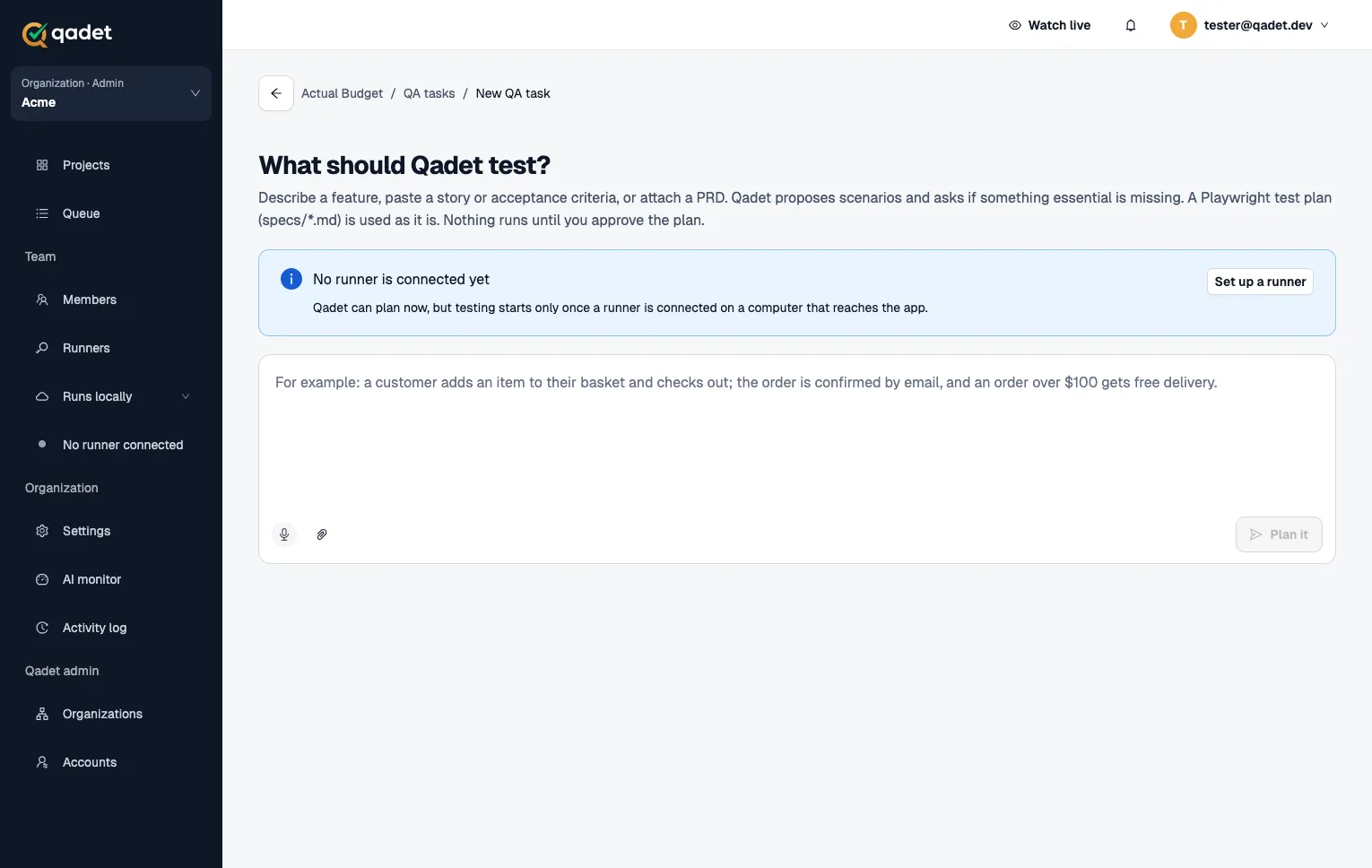
- Start a QA taskOn the project's QA tasks tab, choose New QA task, describe the feature or attach a spec, and send it.
- Review the test planAnswer anything Qadet asks, and ask in the chat for any change. Untick tests you don't want, then choose Approve and start testing.
- Read the resultsYou stay on one page while tests run, with each test's status in the plan. When testing ends, Open report shows each requirement as Verified, Partly verified, Bug found, Needs your call, Couldn't test, Left out or Not tested, with the runs behind it.
- Keep the testsIn the report, under Keep these as regression tests, add the passed scenarios to the project's tests. They now replay without AI.
Tip: the more the requirement says about what should happen, the better the plan. Name the roles, the data and the results you expect.